Welcome to RollerAds, the full-cycle ad network!
The Sites section is designed to help you monetize your websites and landing pages. Connect either one, pass quick moderation, add placements, and start earning. You’ll find everything you need to do that in this guide.
If you’ve worked with RollerAds before, the renewed platform will feel familiar: all your websites, statistics, and referral links are already in the new dashboard—no extra steps needed to sync them.
If you’re new, you’ll learn everything you need to know below. So let’s dive in—no time to lose!
Quick navigation: Dashboard
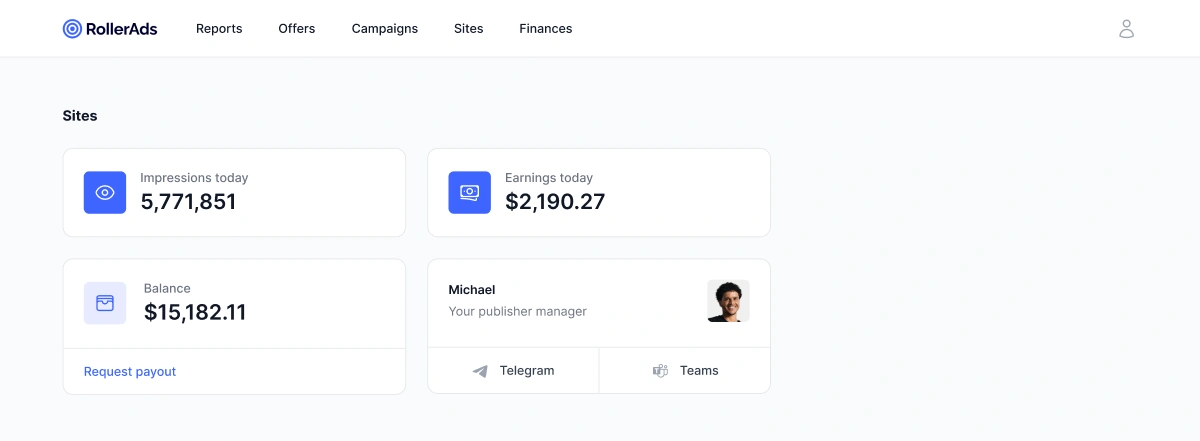
Your daily work starts here. The dashboard provides information on the account balance. At the header, you can find quick navigation: Sites, Reports, and Finances. If you need to contact a specialist, the manager’s card and chat widget are available on every page.
Upon logging in, you get to your Dashboard. Things you will find here include:
- Account balance—the sum available on your account. From here, you can proceed to the payment request page.
- Manager’s card—instant chat via Telegram and Teams.
If you haven’t been assigned an account manager (AM) yet, the support widget in the bottom-left corner is available. Here, you can ask questions 24/7.
From the upper menu you can get to:
- Reports—in-depth statistics on all the offers available.
- Offers—affiliate marketing at its best.
- Campaigns—a section with active campaigns and all the necessary tools for work.
- Sites—you’ll find comprehensive info about this section below.
The Sites tab
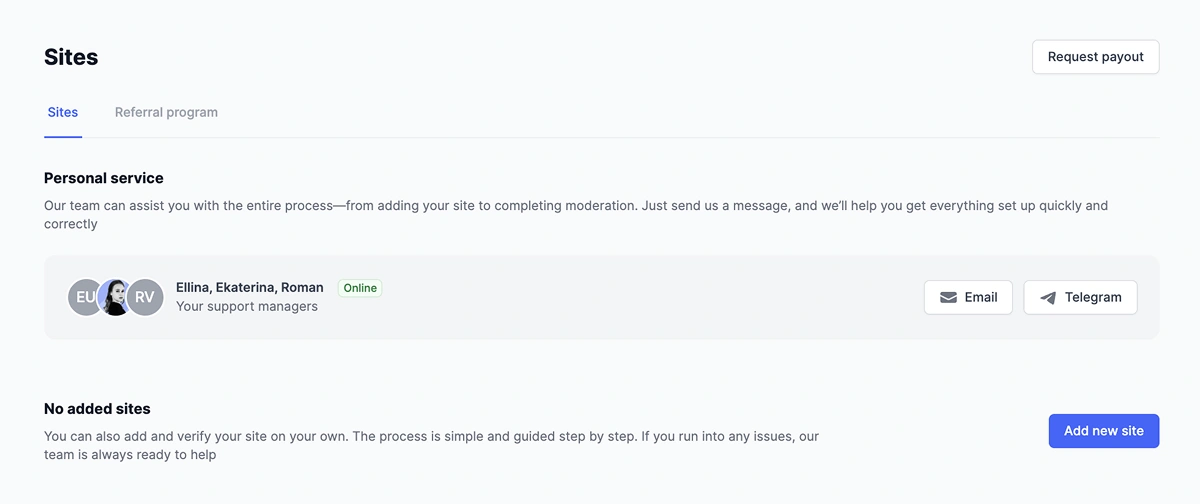
When you get to the Sites section, you find sites added and their statuses. If there are none, you’ll find the “Add new site” button instead, which will lead you to the corresponding page.
Two ways of adding a website
Choose the one you like:
Independent setup: Add a website, confirm ownership (verify the code), and wait for the website to pass moderation.
Guided setup: Contact support or your assigned manager and follow their guidance to add a website.
Adding a website independently
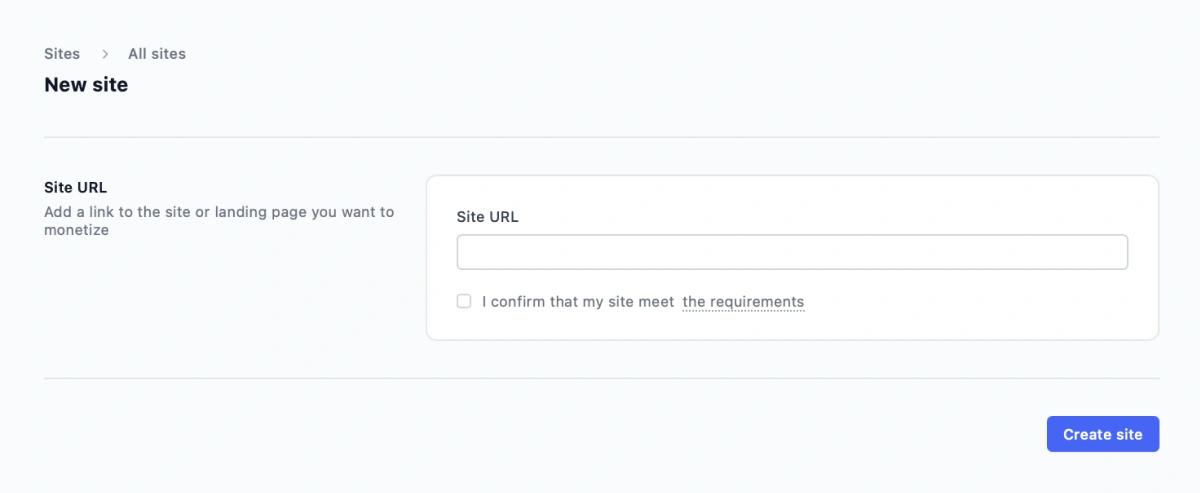
Choose your product type, add the site URL, and tick the box to confirm that you’re familiar with our Quality Guidelines.
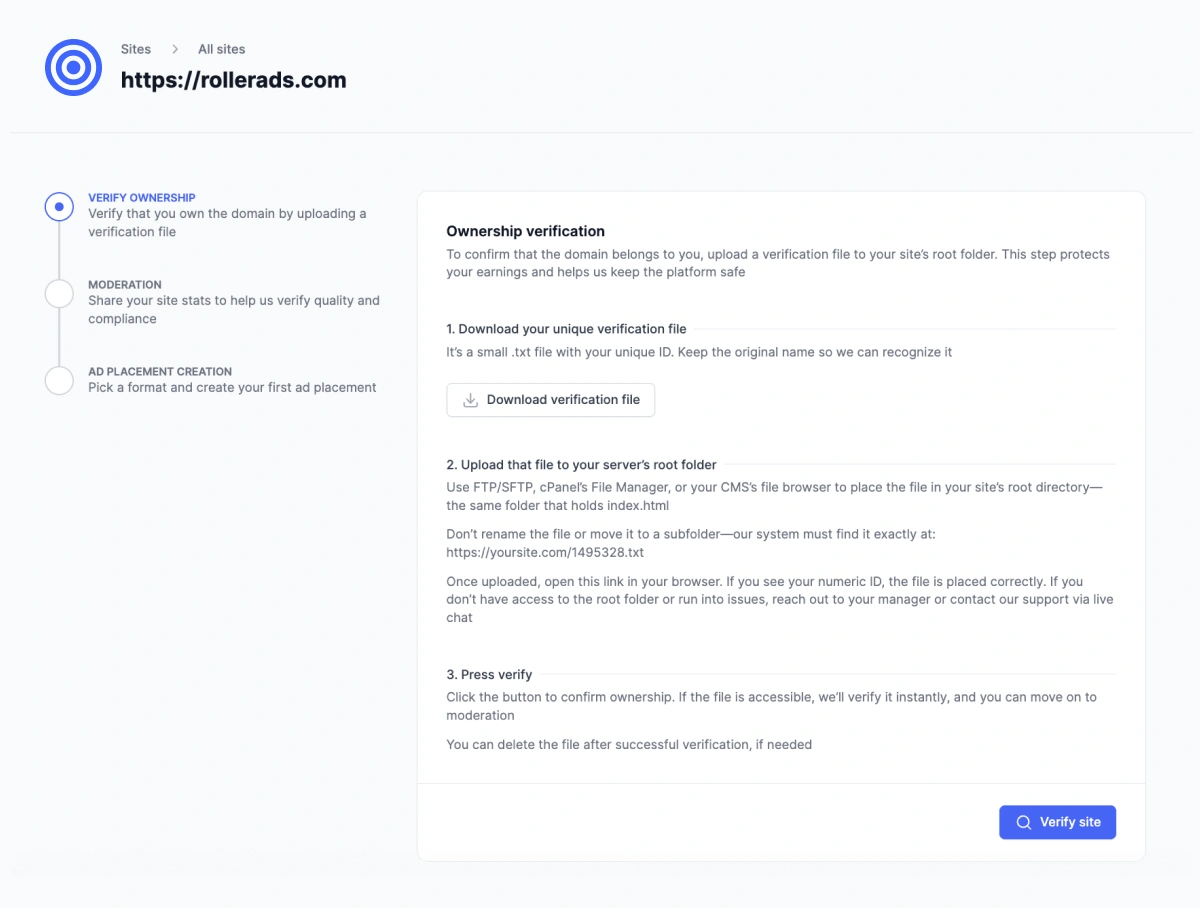
Verification of ownership
At this stage, we need to confirm ownership of your website or landing page. Download a file with a unique code and insert it into your root folder. Once verified, you can delete the file safely.
Even if you don’t have access to the root folder, we can arrange an integration—our team has readily available solutions for various situations.
Moderation
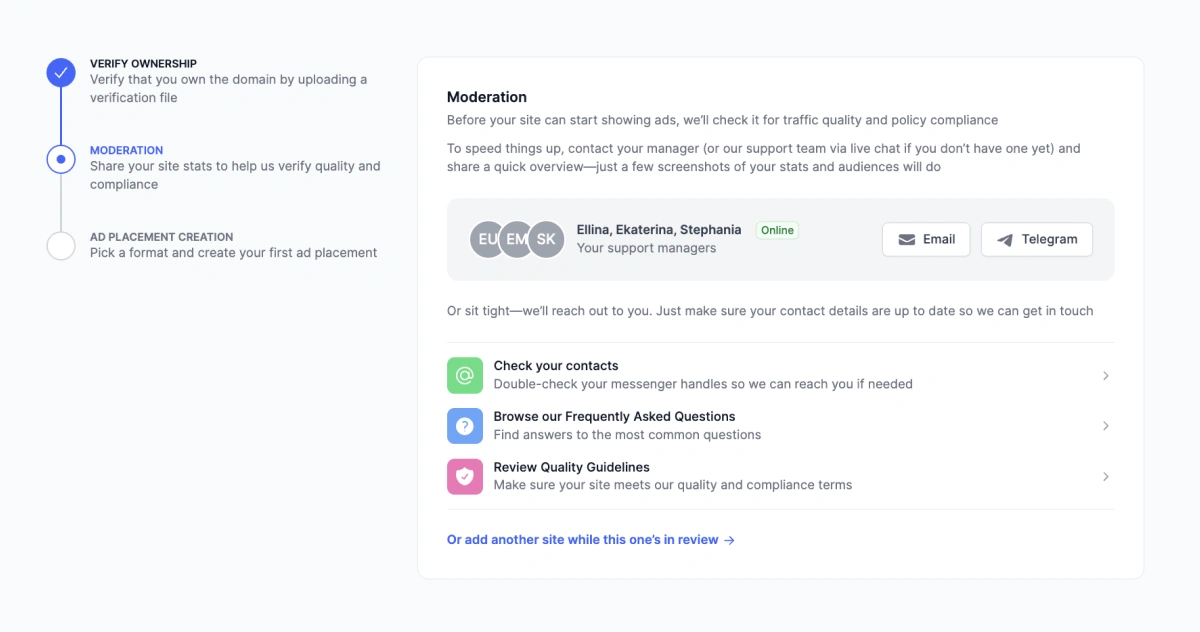
At this step, you need to talk to your manager and provide them with the data on your website stats. By default, our managers contact our partners themselves, but you can speed things up by contacting us first.
Common reasons for rejecting a website include (but are not limited to): no communication with the manager and failure to comply with our guidelines.
Once approved, create your first placement.
Creating an ad placement
After a successful moderation, you need to pick your first ad format for monetization and integrate it into your website. Other ad formats can be added later.
Push notifications: Add Service Worker and subscription code to your website. If your website (landing) is WordPress-based, connect our WP plugin—setting up will take only a few minutes (currently, the plugin works for push notifications). We can also transfer your userbase of subscribers from another ad network.
OnClick: Install JS code for the required pages or specific elements in accordance with the guidelines on our platform. This ad format features simple installation and enables quick monetization.
Direct Click: This ad format can be enabled only by the manager. Contact them, so we can elaborate on what to do next.
Preview page for the website added
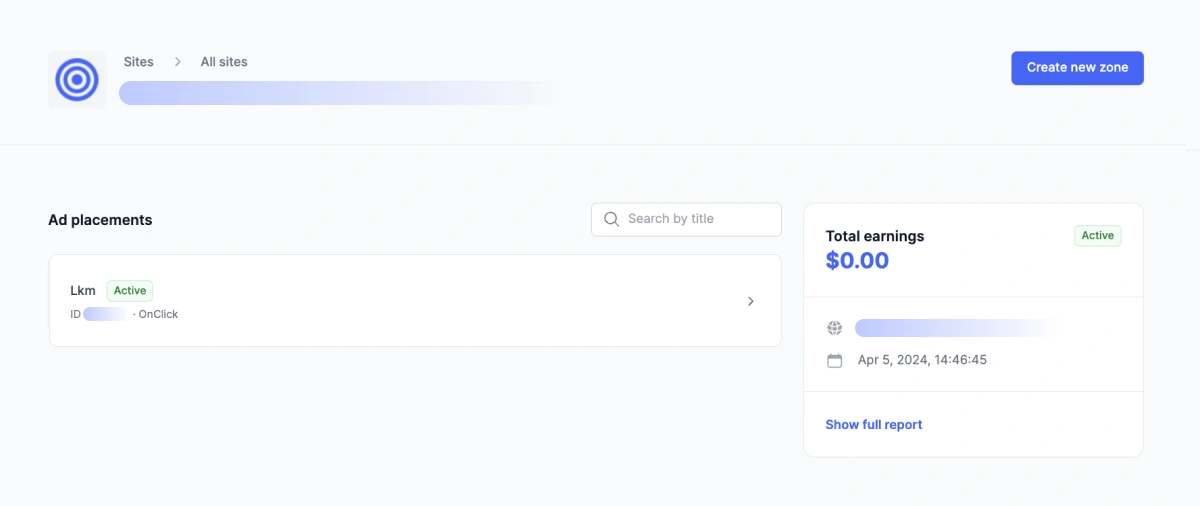
Once your website is successfully added, it will appear in the Sites section. When clicking on the card of a required website, you’ll get to the page with all the info on the website (URL, year of addition, and last update), stats, and zones created. You can also create a new zone or placement here.
Finances: Terms and payouts
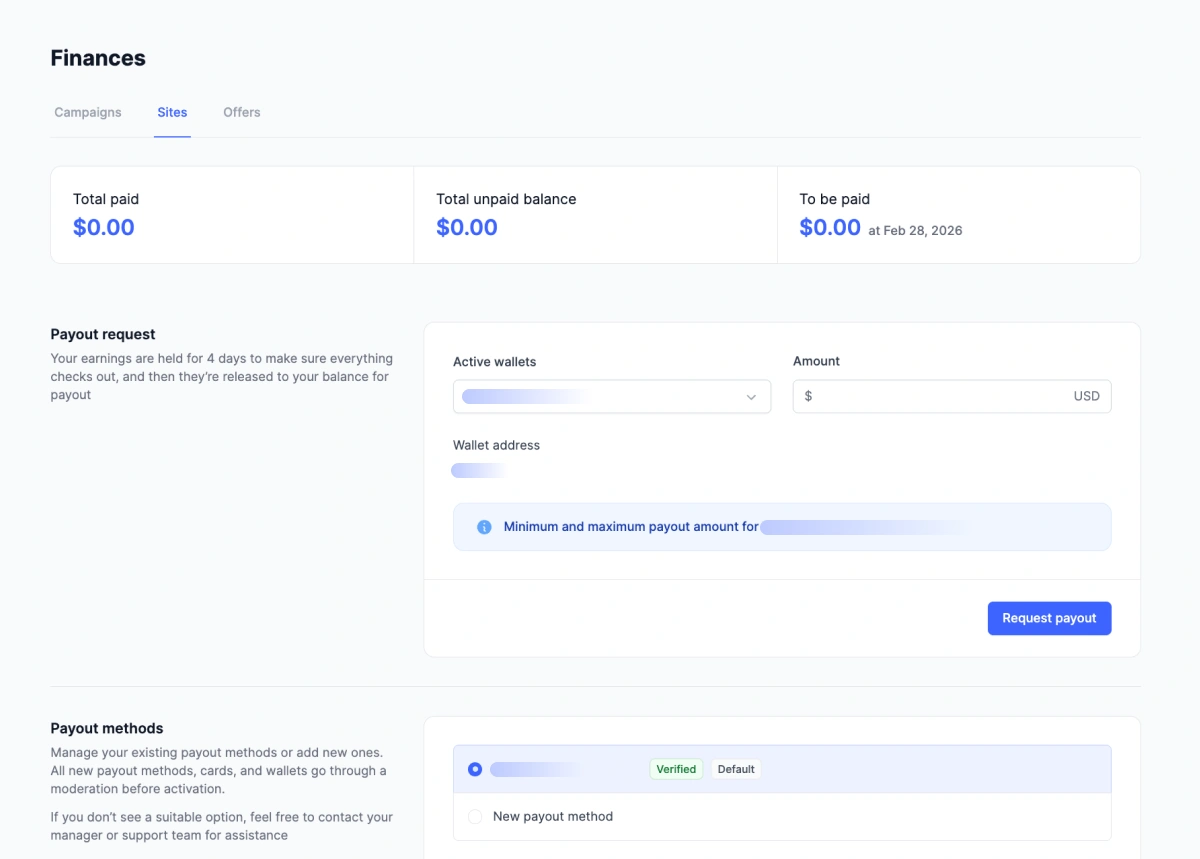
Available payment methods include Wire transfer, Webmoney, Capitalist, Paxum, Payoneer, and PayPal. If you can’t find the method you like, we can come up with something. The minimum withdrawal sum is $50, and you can request it twice a week.
The history of all your payouts can also be found on this page.
Referrals: Additional income with the referral program
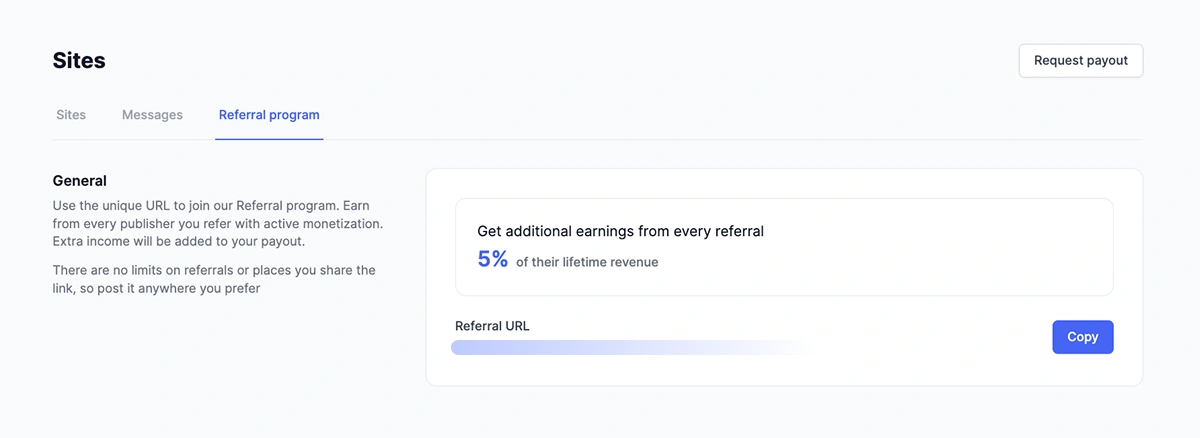
Perhaps you’ve heard about our referral program: bring in a publisher to us and become eligible for an extra 5% of their income. The program works even if you don’t monetize anything with RollerAds. To join the program, simply copy the unique link and post it in any convenient way for others to click on it and join our network.
Find the link itself in the Referrals section.
There will also be info on all the people who used your links and registered. If you want to know more about the exact income details, contact your manager.
Reports: Statistics and export
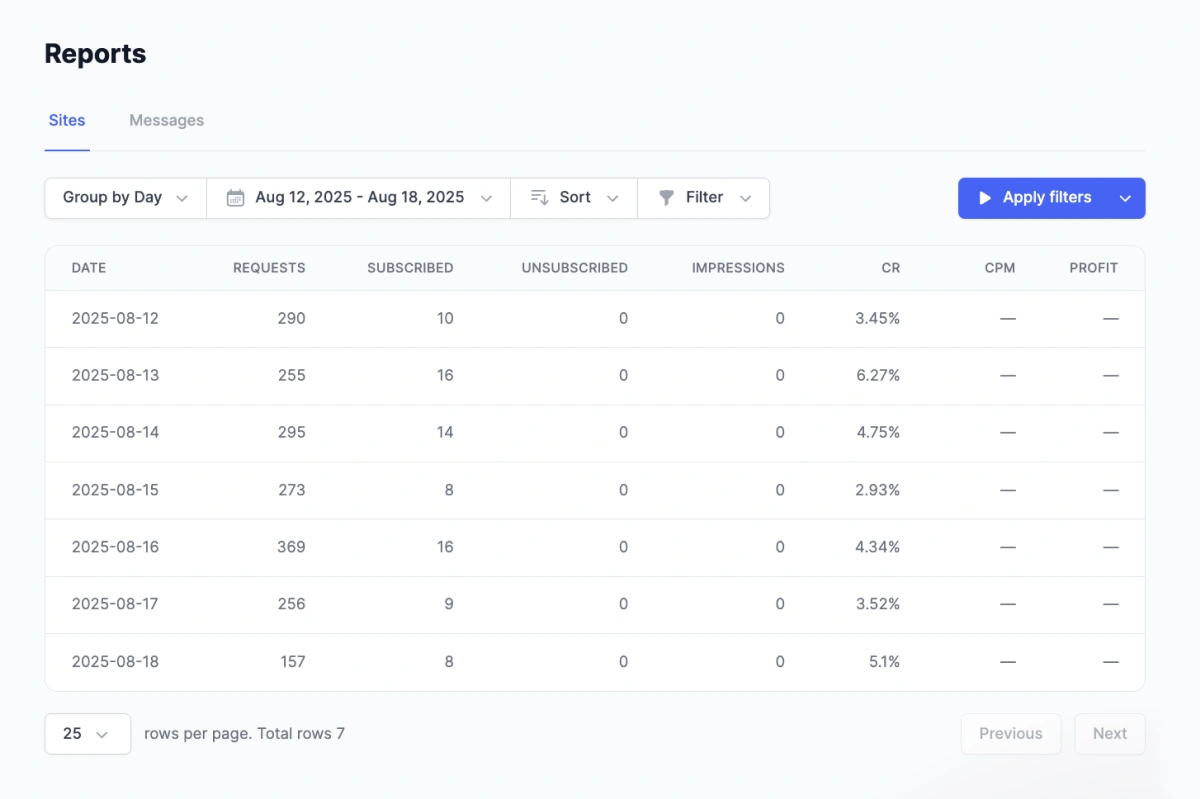
The Reports section displays the results for all campaigns that you’ve ever worked with. The spreadsheet features sorting by offer (but you can change it to something else).
What you can do:
- Change period (day/week/month/custom).
- Group by campaign, creative, format, zone, feed, county, platform (device), subscription age, or period (hour/day/week/year).
- Sort by formats, clicks, conversions, impressions, CR, Cost, CPC, CPM, CTR, CPA.
- Download the report in CSV for analysis.
Cross-roles: Offers and Sites
Last but not least, let’s discuss extra roles.
An important and unique part of our platform is that when you make an account to work with offers, you can also set up extra sections, namely Campaigns and Offers.
With RollerAds, you can use a single account to profit in three ways:
- Campaigns. Launch your ad within our platform itself: pick an offer, add funds to your account, and launch a Push/OnClick/Direct Click campaign.
- Offers. Affiliate marketing at its best.
- Sites. Connect Push notifications/OnClick (or Back Button functionality) to your landing page and get passive income from subscriptions. If you have a full-scale website, your monetization options become even broader.
Webmasters can scale up their income with some extra roles:
- Campaigns. Buy traffic fromRollerAds for your landings and test new approaches.
- Offers. Select offers from a catalogue, create landing pages for them, and monetize them via the Sites section, in addition to your website.
Next steps
- Additional instructions: refer to our FAQ, the mini-guides found in corresponding sections, and read other articles in our blog.
- In case of questions, contact either your account manager (find the contacts in your profile) or our support team via the in-platform chat.
- If you’re a new user, start by adding a website and setting up your first placement. If you’ve come from the old version of RollerAds, make sure things are transferred correctly and add new ad formats.
That’s it. Happy monetizing! 💸