If you’ve ever looked at your domain portfolio and thought, “This one needs to be sold,”— we’ve got you covered.
At RollerAds, we’re constantly working on ways to help you get more value out of your domains. Just recently, we introduced an update that adds another option to your toolkit: you can now list your domains for sale directly on the platform.
The feature is available on our new platform. Let’s go step by step through how you can sell your domains on RollerAds. We’ll try to cover all the key questions along the way, but if anything is still unclear after the guide, we’re always happy to help.
The new RollerAds platform is now live in open beta! We’ve brought together all parts of the affiliate marketing workflow into one place, including our in-house CPA network. Take it for a spin and see what you think!
To help you get started, we’ve put together three detailed guides covering each key area: Campaigns, Sites, and Offers. Dive in, and if you need any help, our team is always there for you. Just use the in-platform chat to reach out (just like in our current platform).
How to list a domain for sale
The period between the idea of selling a domain and its realization takes just a moment—let’s go over how to list your domains for sale on RollerAds. If you prefer a video format, the guide is below. A step-by-step text version is also available—just scroll down a bit.
Step 1: Let your manager know you want to sell your domains
Once you’ve informed your manager that you’d like to have this option enabled, it will appear in the Domain parking tab in your Sites account.
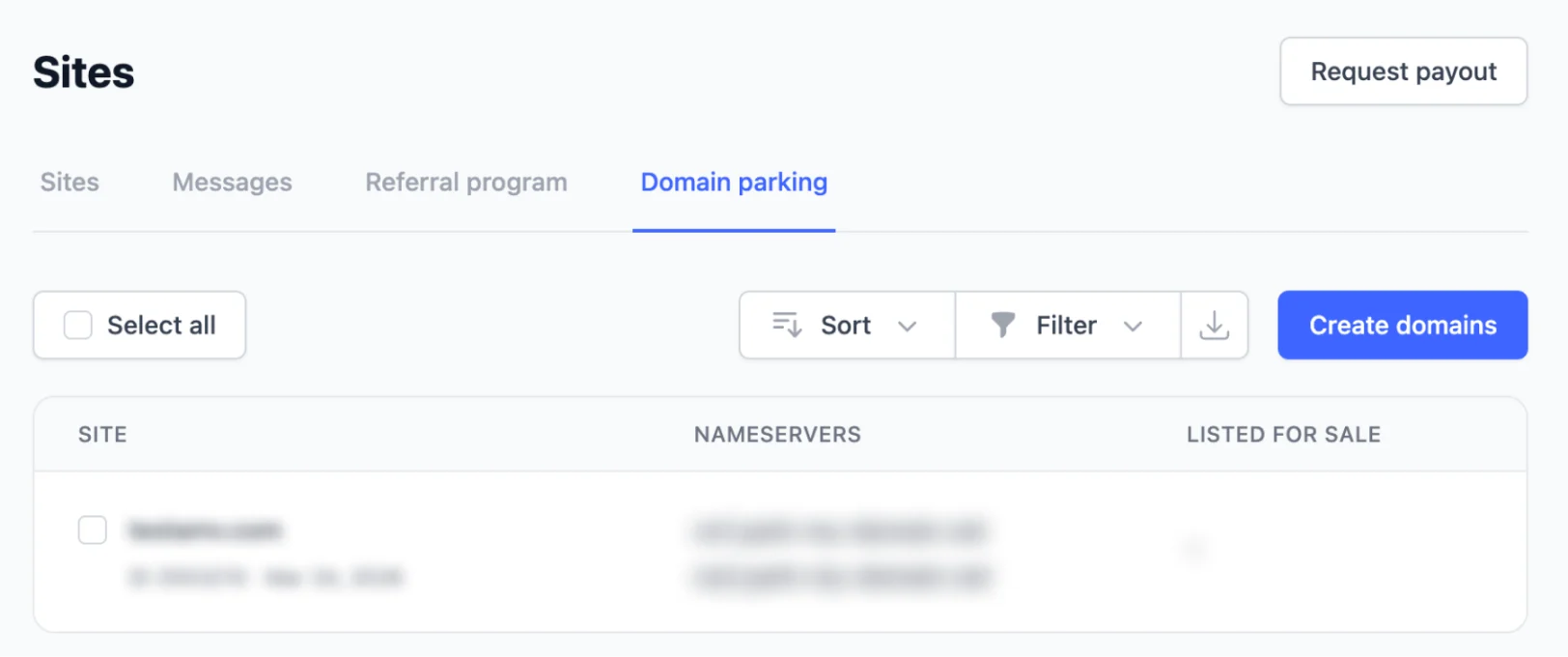
Step 2: Pick a domain for sale
In the list of your domains, pick one or several you want to list for sale—just put a tick in the dedicated box—and click List for sale.
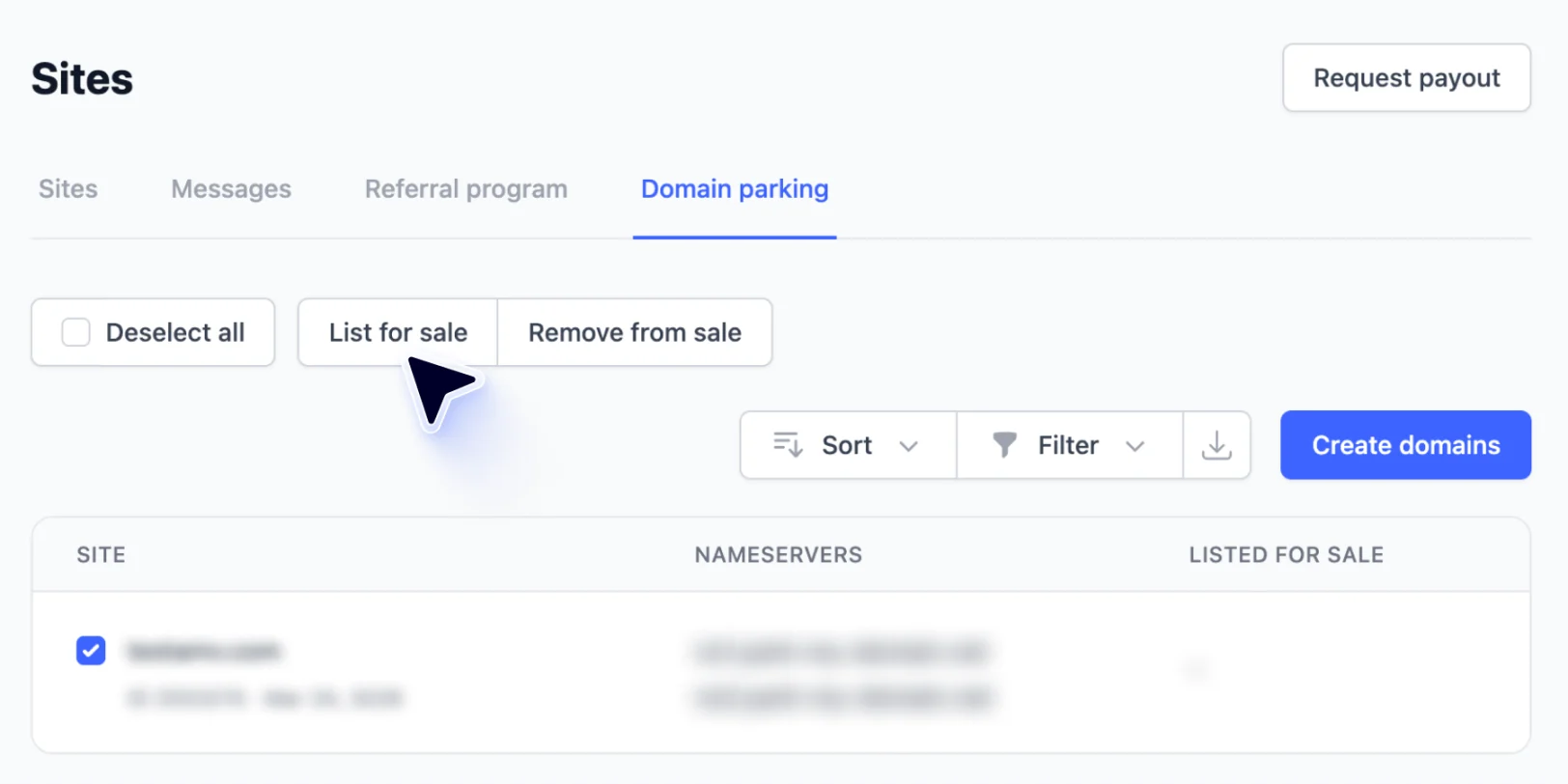
If you want to list all your domains—simply put a tick in the Select all box. To clear the selection, tick Deselect all.
Step 3: Confirm the listing
After clicking List for sale, a confirmation window will appear. Click Confirm.
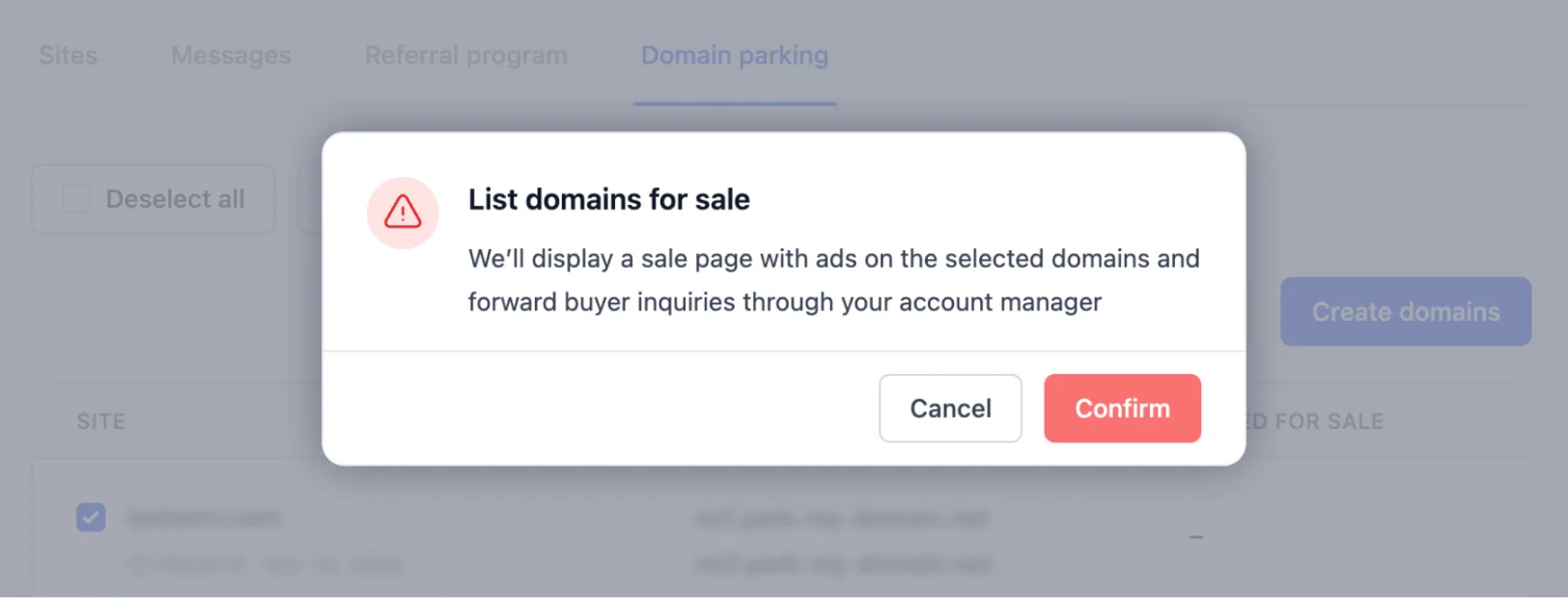
That’s it. The Sale label will appear next to your domain.
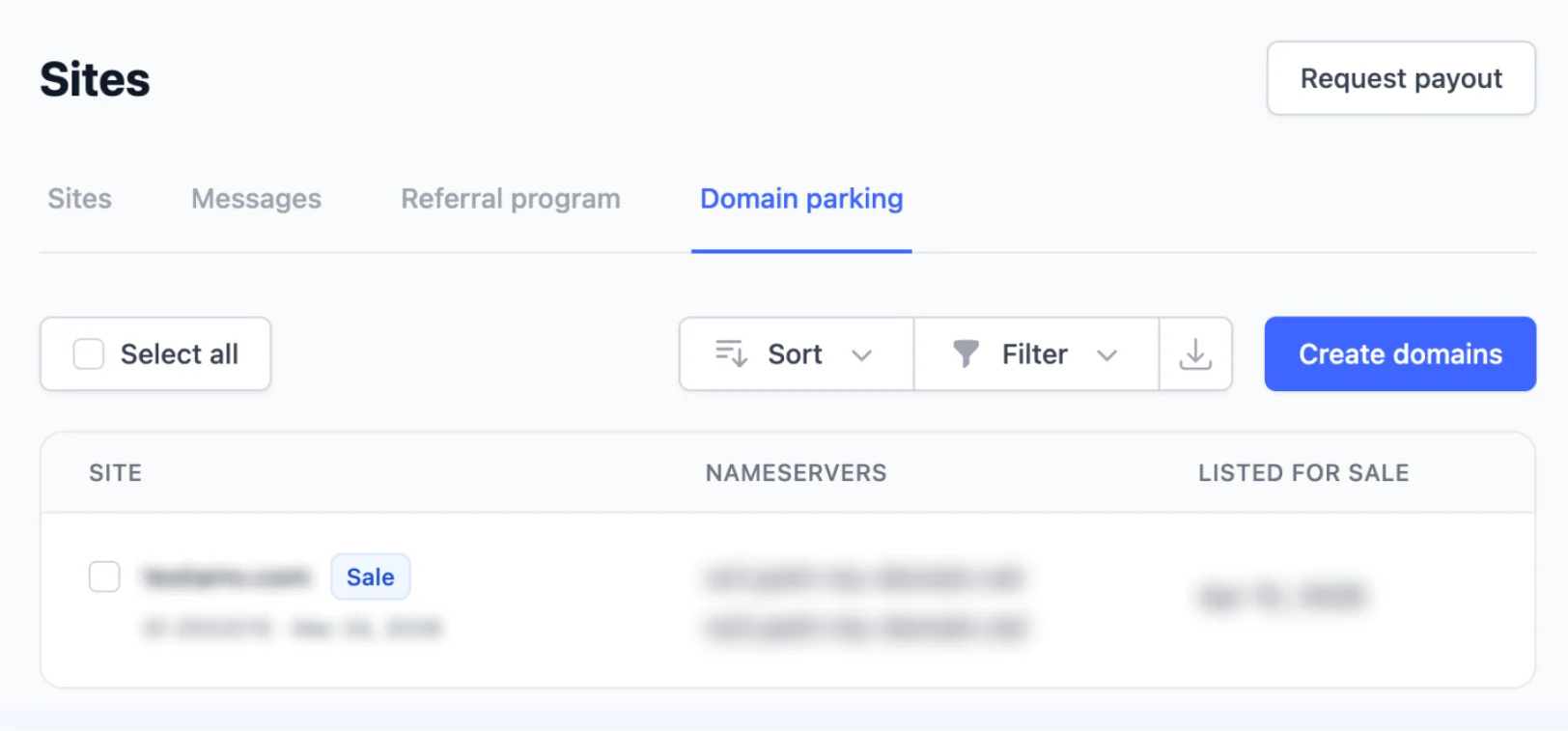
As soon as there are requests to buy your domain, your manager will send them to you for review.
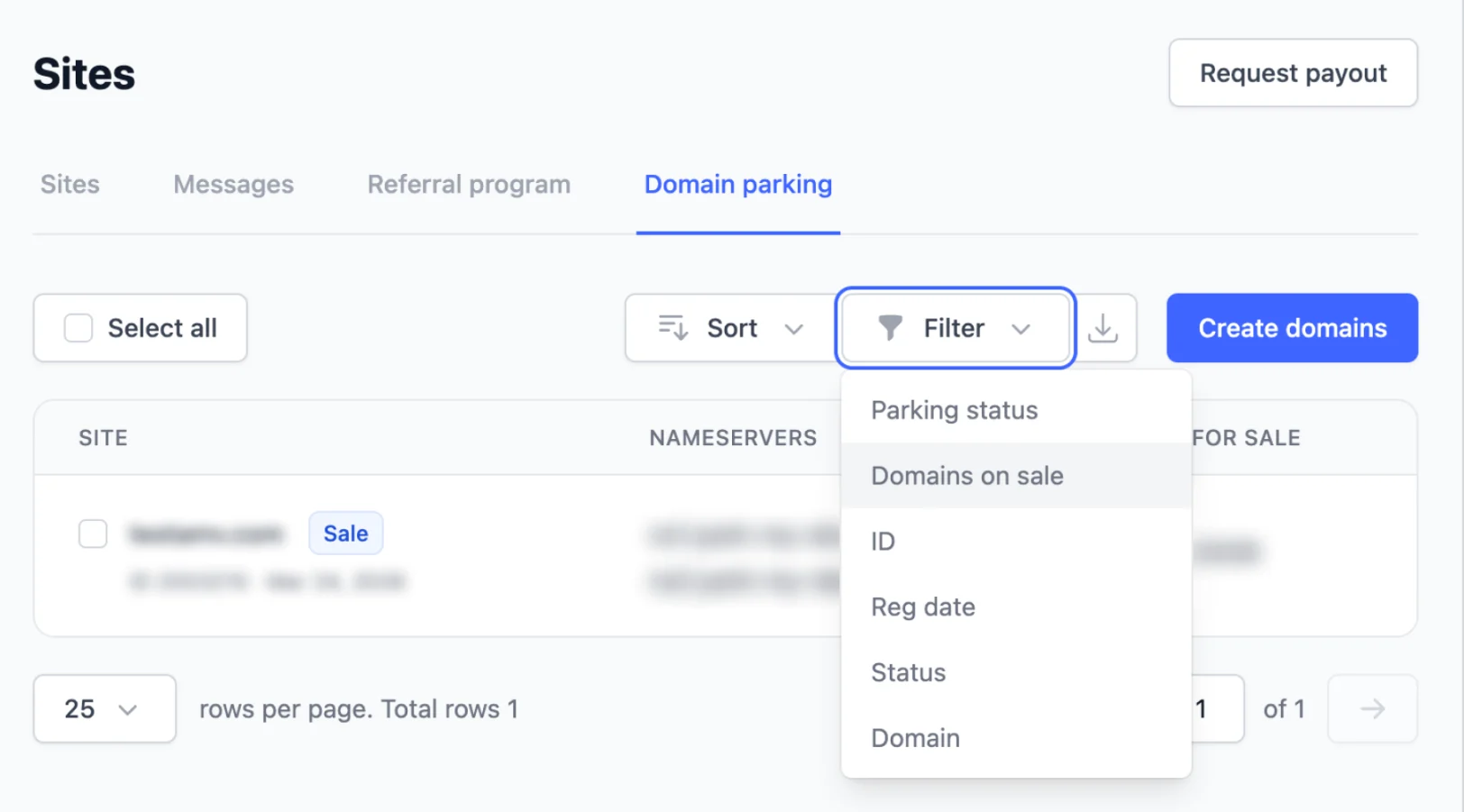
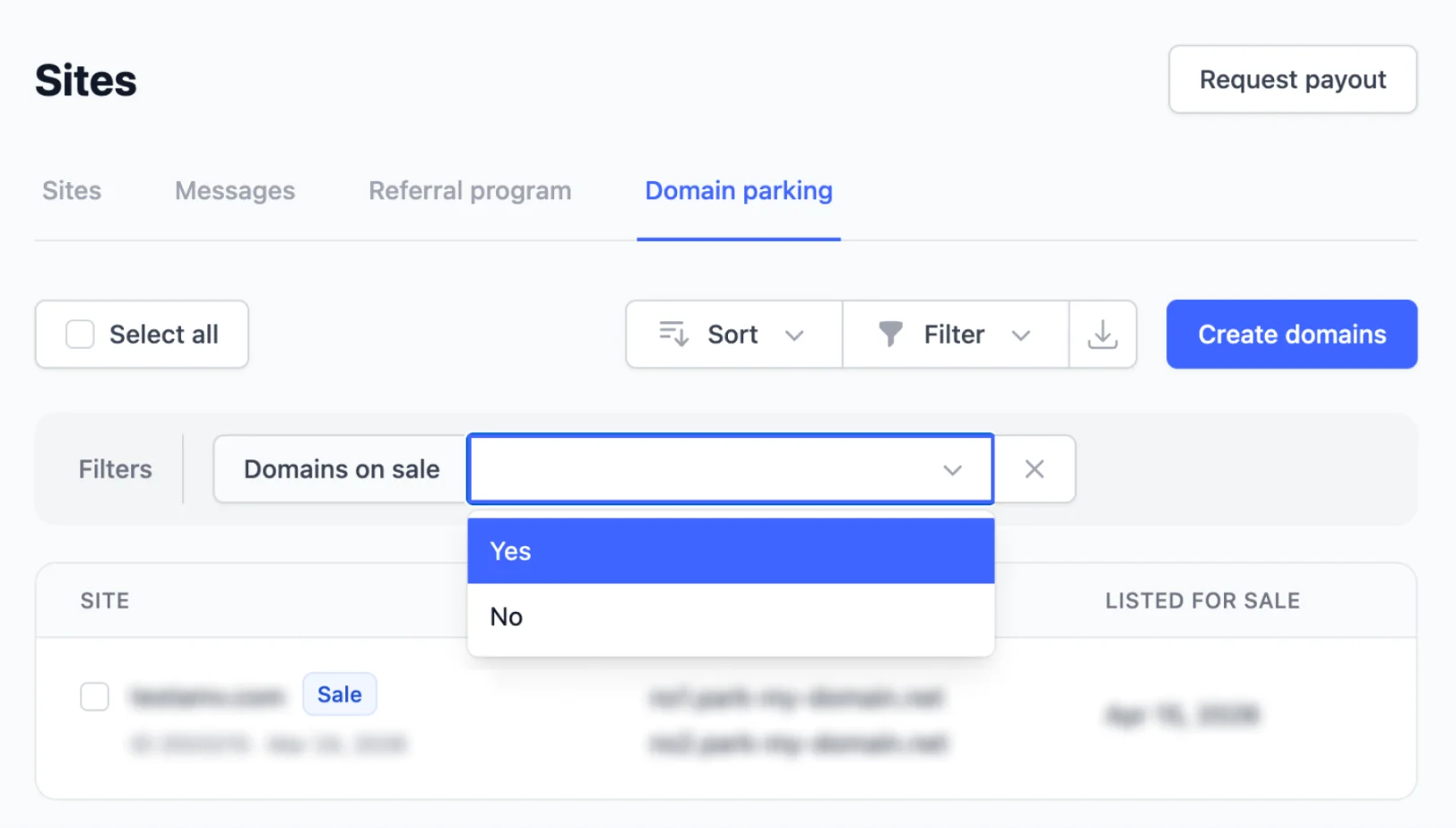
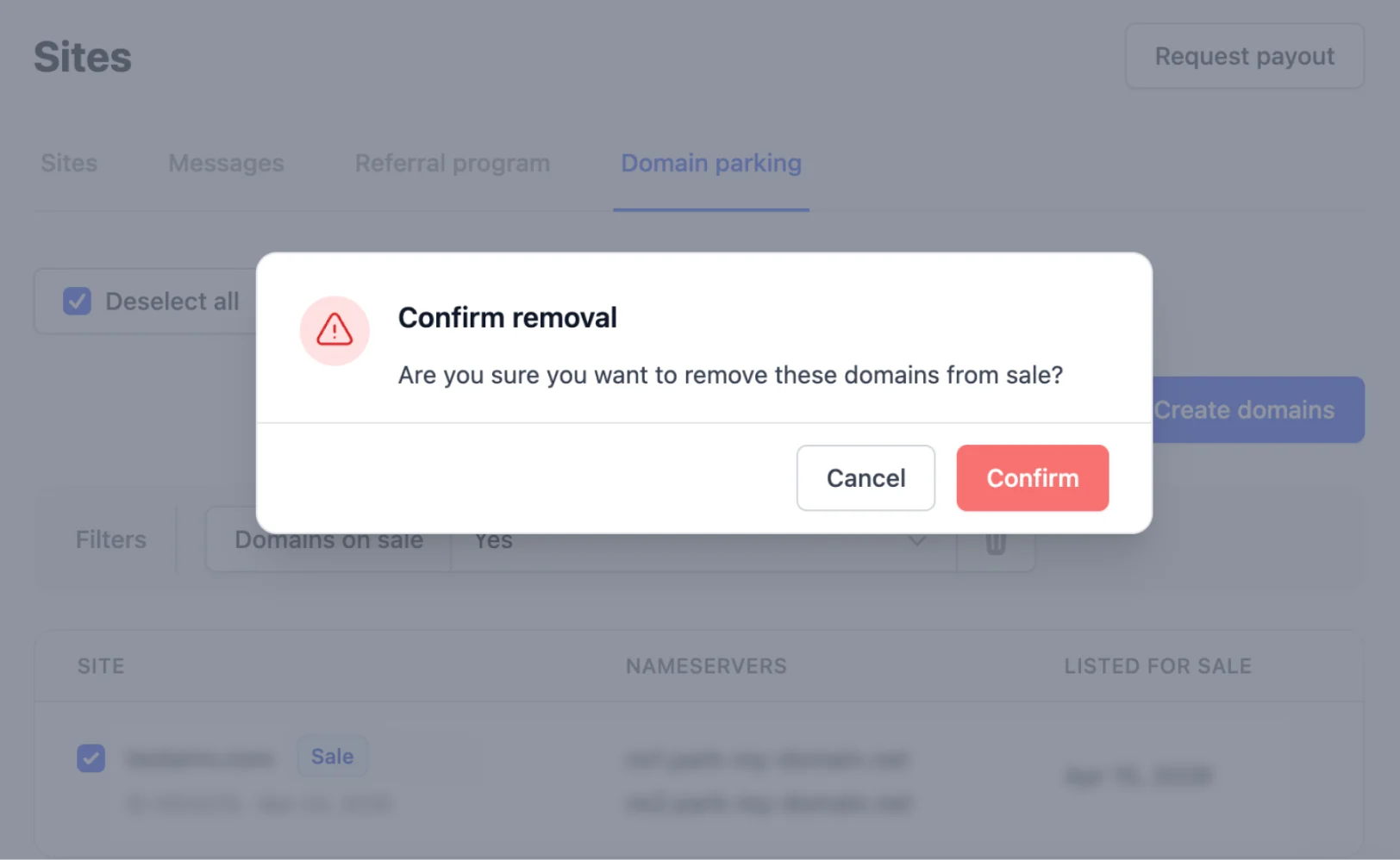
In case you decide to remove your domain from sale, select Domains on sale in the filter tab, click Yes, and confirm the action.
Monetization of listed domains
Until your domains are sold, you can continue to monetize them with us. You can find a full breakdown of domain monetization in our earlier post: How to monetize domain traffic in 2026.
When a user lands on your domain, they will see a notice that it is available for sale, after which they will be redirected to a relevant ad. If a user is interested in buying the domain, they can simply re-enter the address and proceed to the contact form.
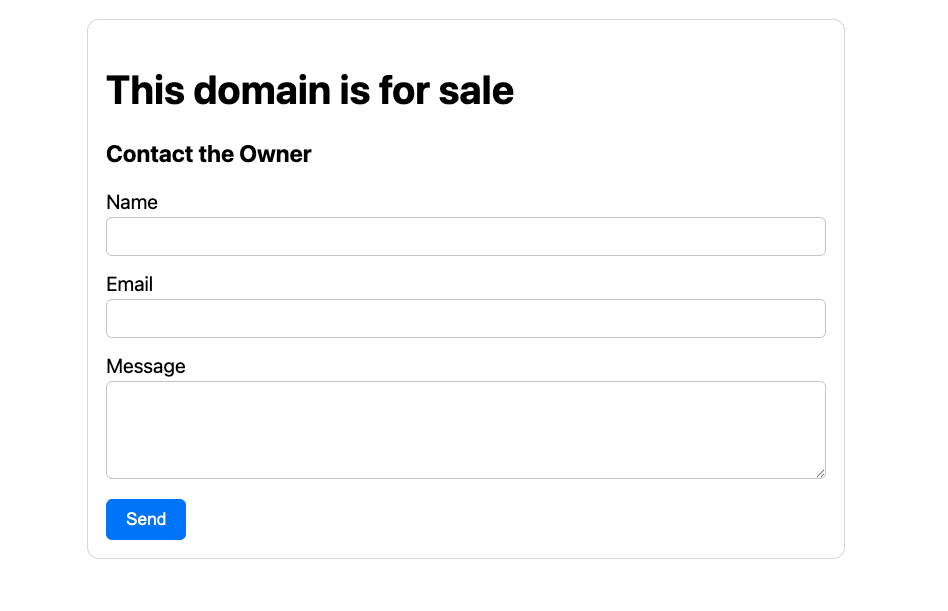
You can also access the contact form directly by using a link in the format URL.com/buy (where URL.com is the domain).
Instead of conclusion
As this is the first version of the feature on our platform, we’ll continue improving it based on your experience and feedback. If you have any suggestions or ideas on how to make it better and more convenient, we’d be glad to hear from you—just write a message to your manager or our support team.
Start testing it with your domains and let us know how it works for you.