
PeerClick gives advertisers full visibility into campaign performance, helping identify profitable zones, optimize traffic sources, and make data-driven scaling decisions.
With PeerClick, affiliates can track the entire funnel—from clicks and conversions to custom events—while analyzing performance by placement, GEO, device, creative, and campaign. The platform also supports A/B testing, automated optimization rules, bot filtering, fraud protection, and integrations with major traffic sources, including RollerAds.
For RollerAds users, PeerClick currently offers 1 month of free access with the promo code ROLLERASD26. This allows advertisers to test campaigns with full tracking visibility before committing to a paid plan.
Now let’s move on to the setup process.
1. Open the Traffic channels section
Head to the “Traffic channels” tab in the upper panel of the tracker and click “+New”.

2. Select the RollerAds template
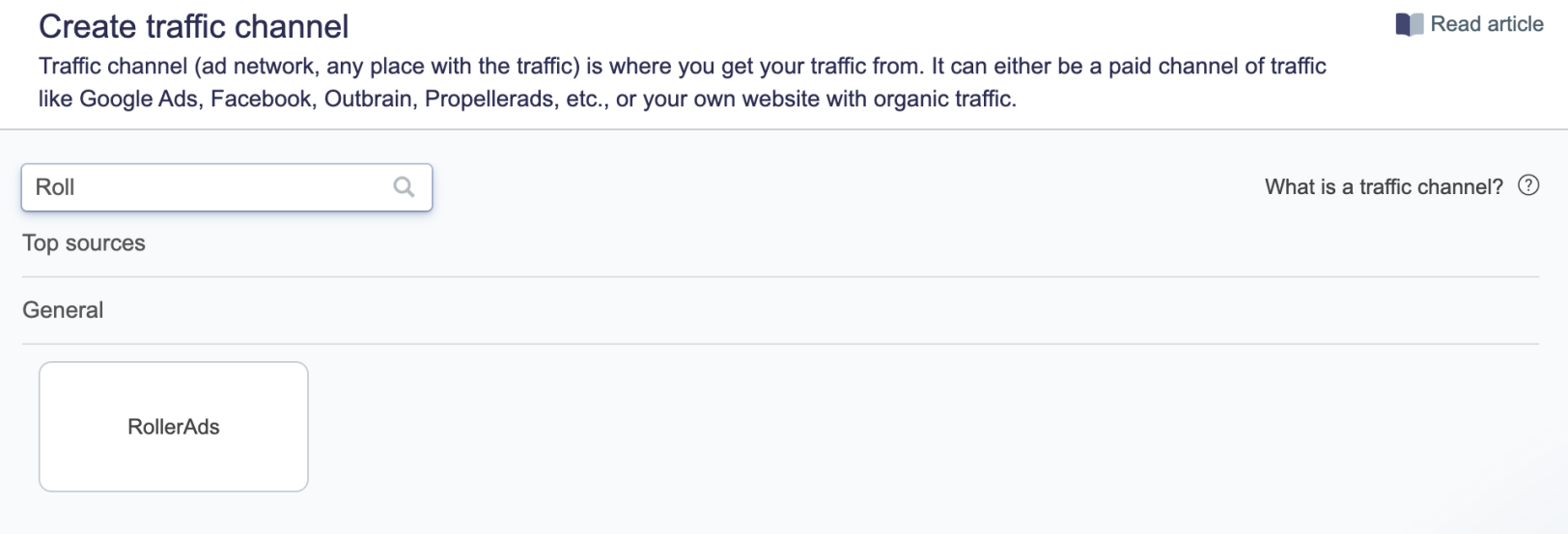
Start typing “RollerAds” in the search bar and choose the corresponding template.
Fill in the required information related to your account.
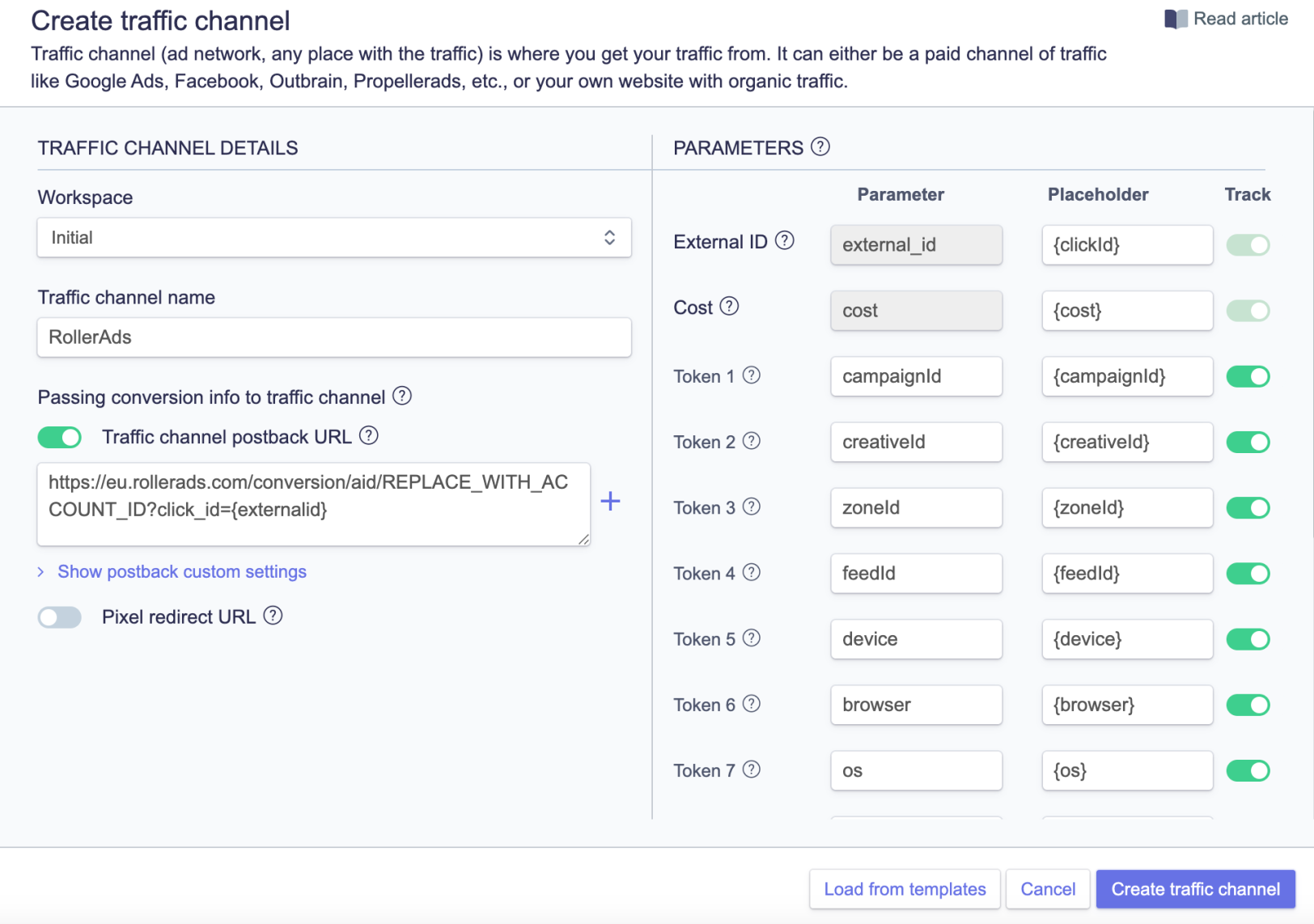
In the “Traffic channel postback URL” field, insert your RollerAds postback URL. You can find it in your RollerAds account under the “Tracking” tab inside the “Campaigns” section.
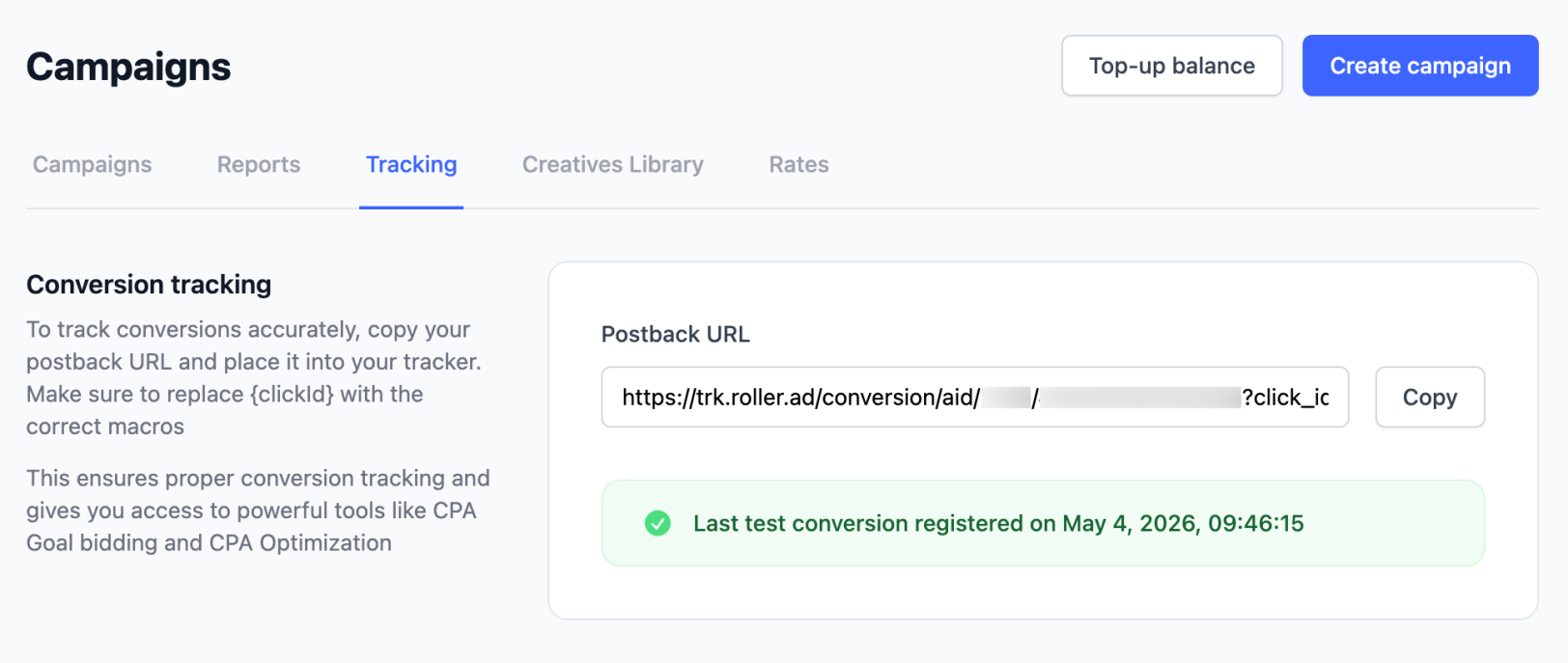
Make sure to replace [account_number] and [tracking_key] with your actual account details.

⚠️ Important: Make sure to replace the postback URL with your own valid one. However, the ending part of the template link ?click={externalid} must remain unchanged.
3. Complete the integration
Click the “Create traffic channel” button.
Once the RollerAds postback is integrated with PeerClick, you can proceed with campaign setup. The postback will automatically apply to campaigns whenever Rollerads is selected as the traffic source.