Remembering ten parked domains might be simple, but keeping track of five hundred is a completely different story. At some point, you cease monitoring each domain separately and begin to look at groups such as travel domains, those purchased in March, or those aimed at a particular market.
Domain tags in RollerAds are useful for dealing with questions at the group level. You assign a tag to each domain and then use those tags to filter your domain list and reports. Sounds simple? Now let’s see how they work.
How domain tags work
On RollerAds, domains that are parked earn money with Direct Click and are displayed in the Domain parking section. A tag is just a label for your domain; as the platform states, tags help you “organize your domains and track statistics by segment.”
Three things to know before you start:
- A domain may have only one tag.
- During upload or later, you can add a tag either for a single domain or for multiple domains at the same time.
- Tags let you filter both your domain list and your reports.
Plan your tags before you add them
Since each domain may have only one tag, the way you group domains is more important than the tag names. So consider the question you ask most often about your portfolio and then create the tags around it.
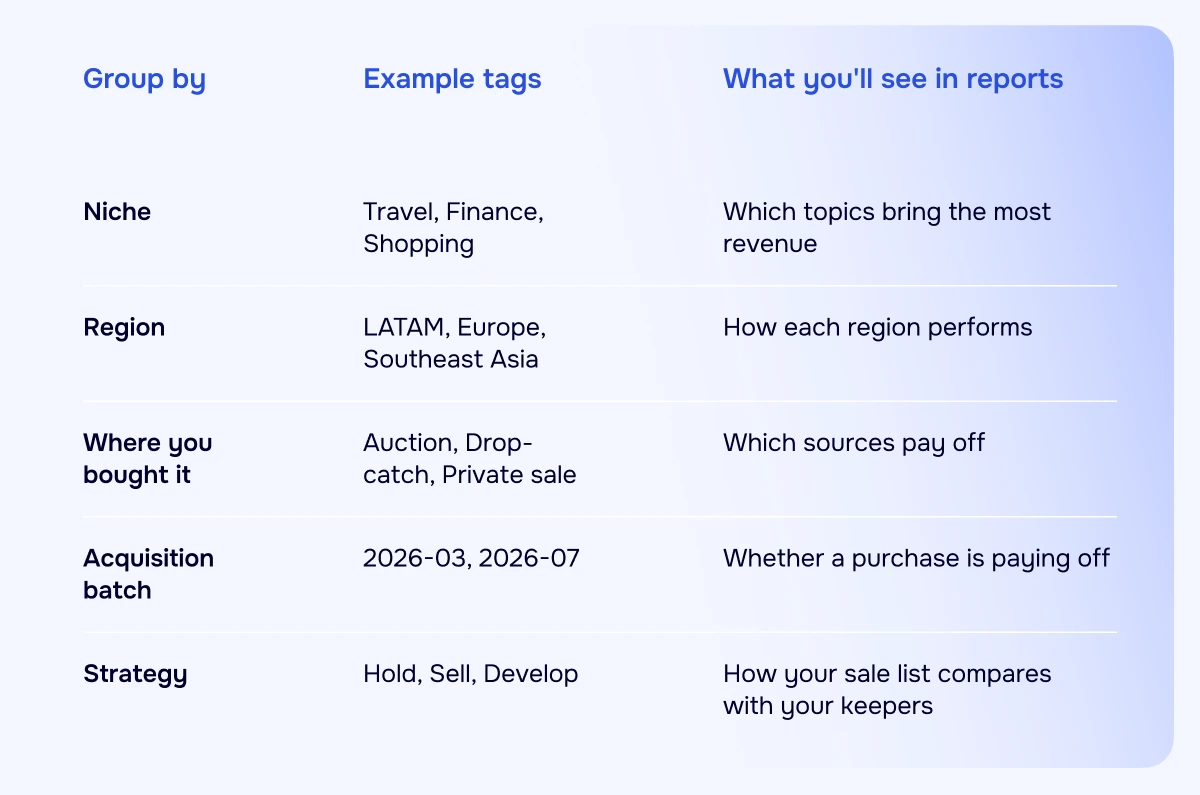
A few tips to keep your tags useful as the portfolio expands:
- Use one tagging scheme (e.g., capitalized names like Travel or Auction) throughout. “Travel” and “travel-sites” will split a single category into two.
- Try to keep the number of tags to a minimum. Filtering across ten unique tags is much simpler than filtering across forty potentially redundant tags.
- More than one person on the portfolio? Write down what each tag means.
- Plans change. When they do, re-tag in bulk instead of one domain at a time.
How to add tags
When you add new domains
- Visit Sites, select the Domain parking tab, and then click Create domains.
- You can enter your root domains manually, up to 200 at a time, or upload a .txt file containing up to 50,000 domains.
- In the Tag field, select one of the existing tags or type a new one.
- Make sure that your domains meet the Quality Guidelines and then submit them.
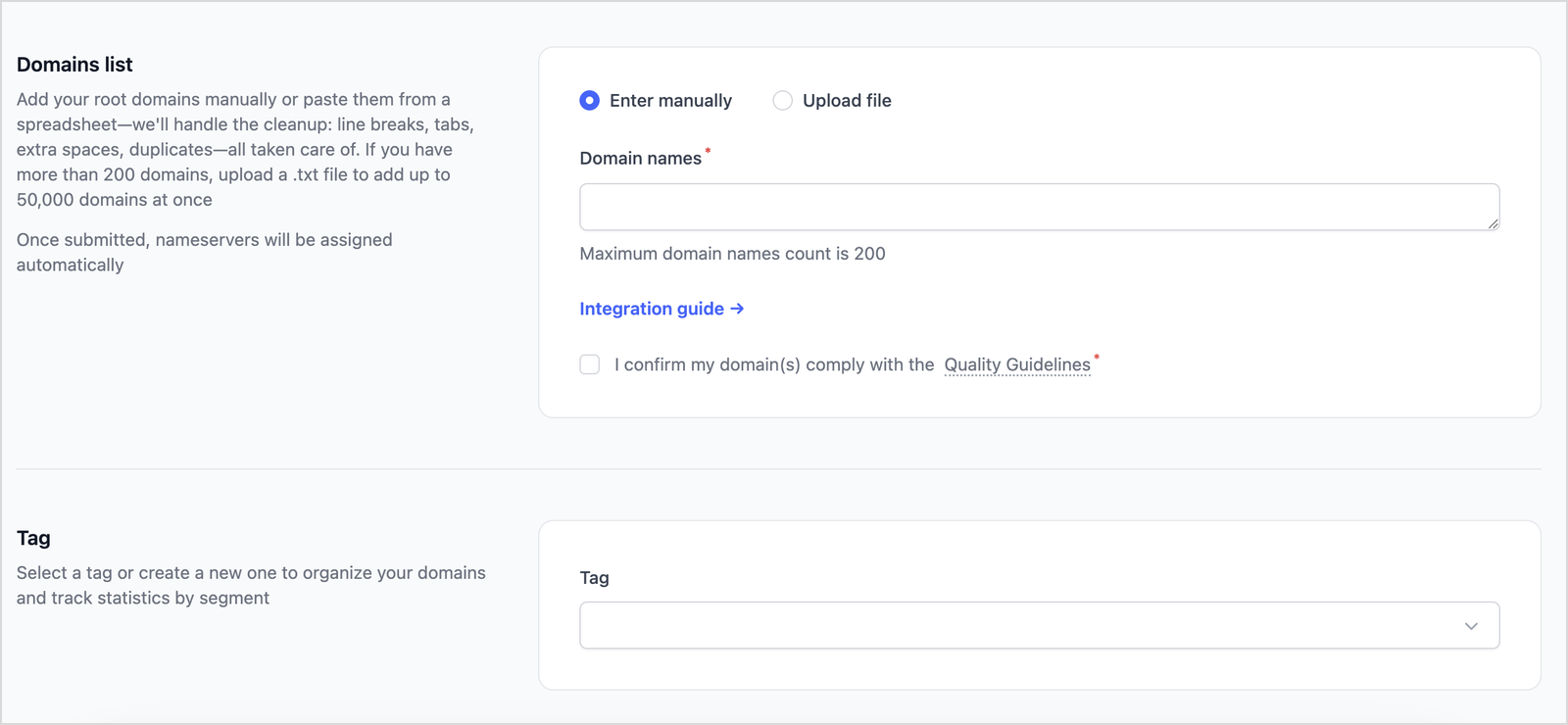
There is no need to tidy your list before pasting it, since the form will automatically eliminate line breaks, tabs, extra spaces, and duplicates, and will assign the nameservers for you. For the rest of the setup, refer to the help center or your manager.
Domains you’ve already added
Open your domain list and locate the Tag column. When you see a domain without a tag (Not set), you can click Add tag to either assign an existing tag or create a new one. To change or remove a domain’s tag, use Edit and Delete in the same column.

Many domains at once
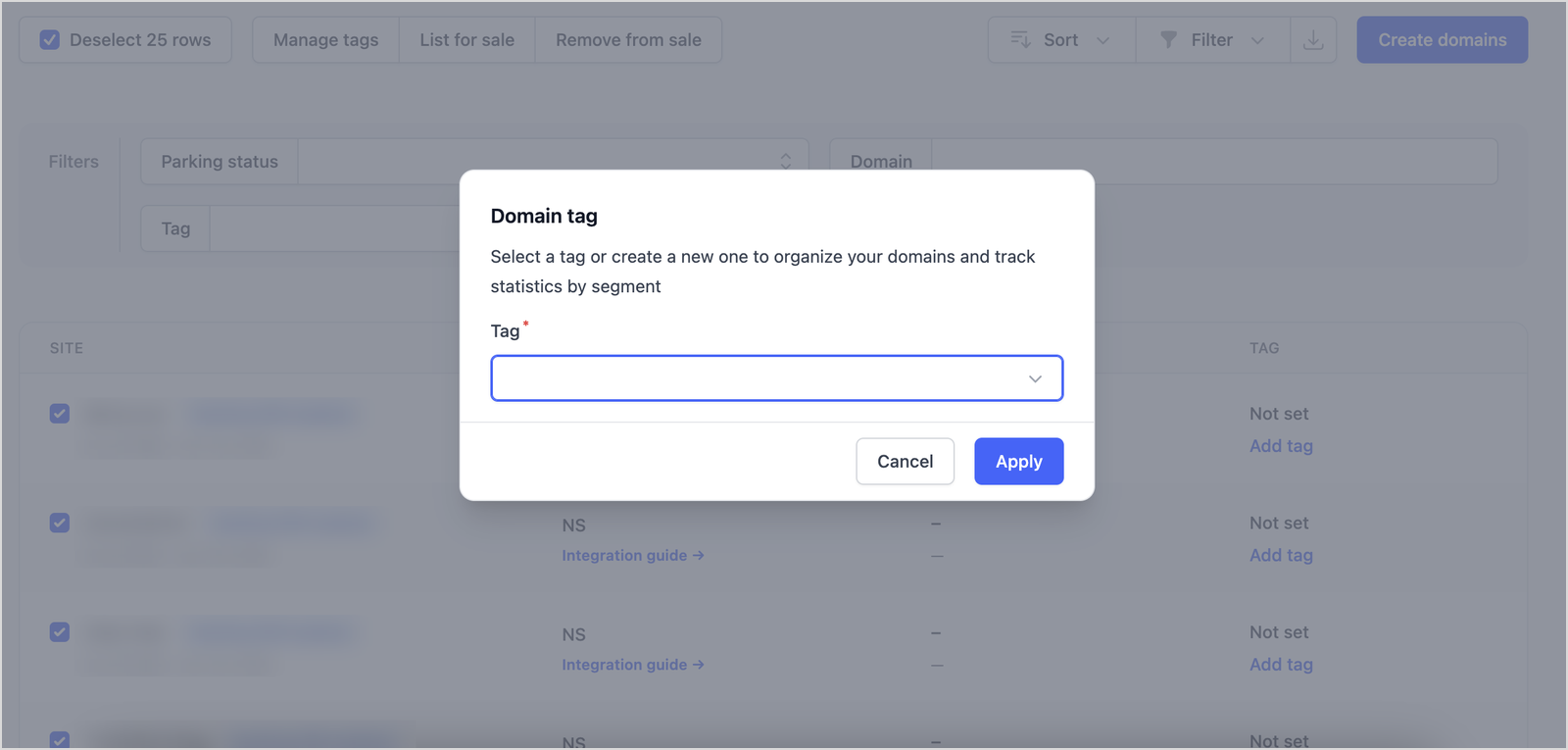
Click to choose your desired domains, or use a single click of the mouse to select all of the rows shown on this page. Then click Manage tags, select your tag, and finally click Apply. You can tag up to 500 domains at a time, the same as the maximum number of rows on one page. Just note that you pick domains in the list itself: pasting a list of already parked domains to select them isn’t supported yet. This is also where you will find the buttons to List for sale and Remove from sale, so you can update as many domains as needed in one go.
Where tags pay off
The domain list
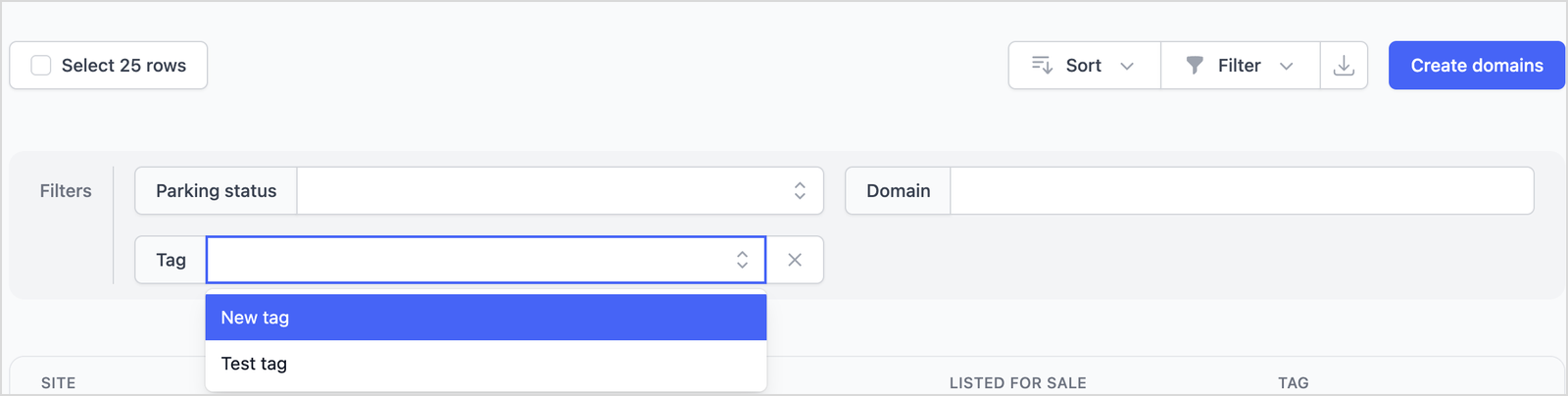
Above your list, click Filter and then select Tag. This will cause a tag field to appear alongside Parking status and Domain, enabling you to limit the list to domains with the tag you have chosen. Alternatively, you can filter by status, ID, registration date, or by whether the domain is on sale.
Reports
Tags are most valuable here. Go to Sites > Reports, add the Tag filter, and choose a tag. You’ll see numbers for that tag’s domains only: impressions, CPM, and profit for your dates, grouped by day.
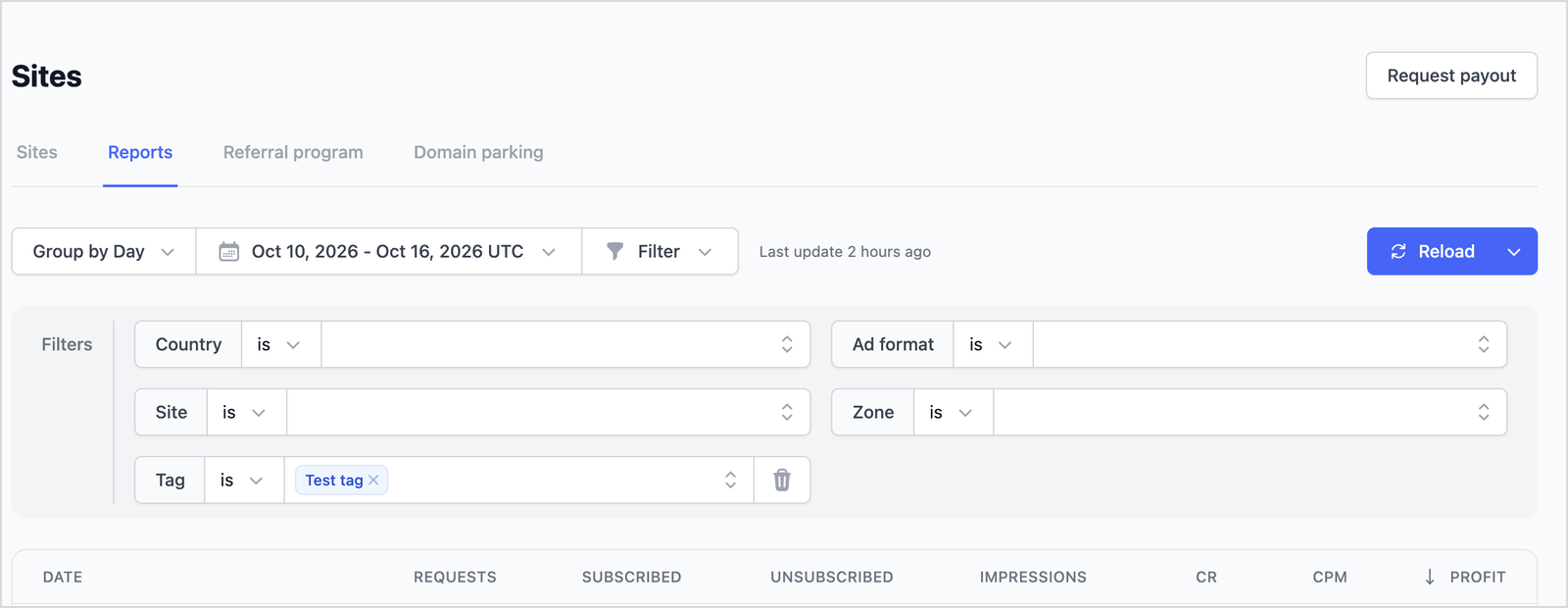
You can stack other filters on top of the tag filter. Pick the Travel tag and a country to check how travel domains did there last week.
There will be no need to use spreadsheets or to copy domain lists from one tab to another.
Tags and selling domains
If you are selling domains, a report filtered by tag provides you with data that you can use to justify your asking price. Filter by tag, examine the group’s traffic and revenue, then pick out the domains in question and list them for sale together. The domains that have been listed continue to generate income until they are sold, and the Domains on sale filter indicates which ones are available.
A simple routine for a growing portfolio
- When you upload a new batch, tag it in the same form.
- Each week, take a look at the Tag column for any domains that have Not set and make sure those are tagged.
- To see which groups are driving your portfolio, review the reports by tag rather than by domain.
- If a group stops performing, contact your manager and look at the group as a whole to find out what’s wrong and what can be done.
Bottom line
Tags are a simple feature that helps you manage a large number of domains. Each domain has one tag, so every list and report will be able to track it.
Still deciding where to park your domains? Take a look at our checklist for choosing a domain monetization platform to see what factors to consider. Once you’re ready, sign up for a RollerAds account and begin tagging your domains from your very first upload.